Introduction
Invitations is the essential way to share your awesome systems and sensor data with your friends and colleagues.
Create invitation
Creating an invitation can be done in two ways: from the user menu or from system settings. We will show you both ways.
You can invite existing Neuron users or you can invite non-users.
If invited person does not have a previous account, they need to follow the invitation link on e-mail and create a new account before accepting the system invitation.
Create invitation from user menu
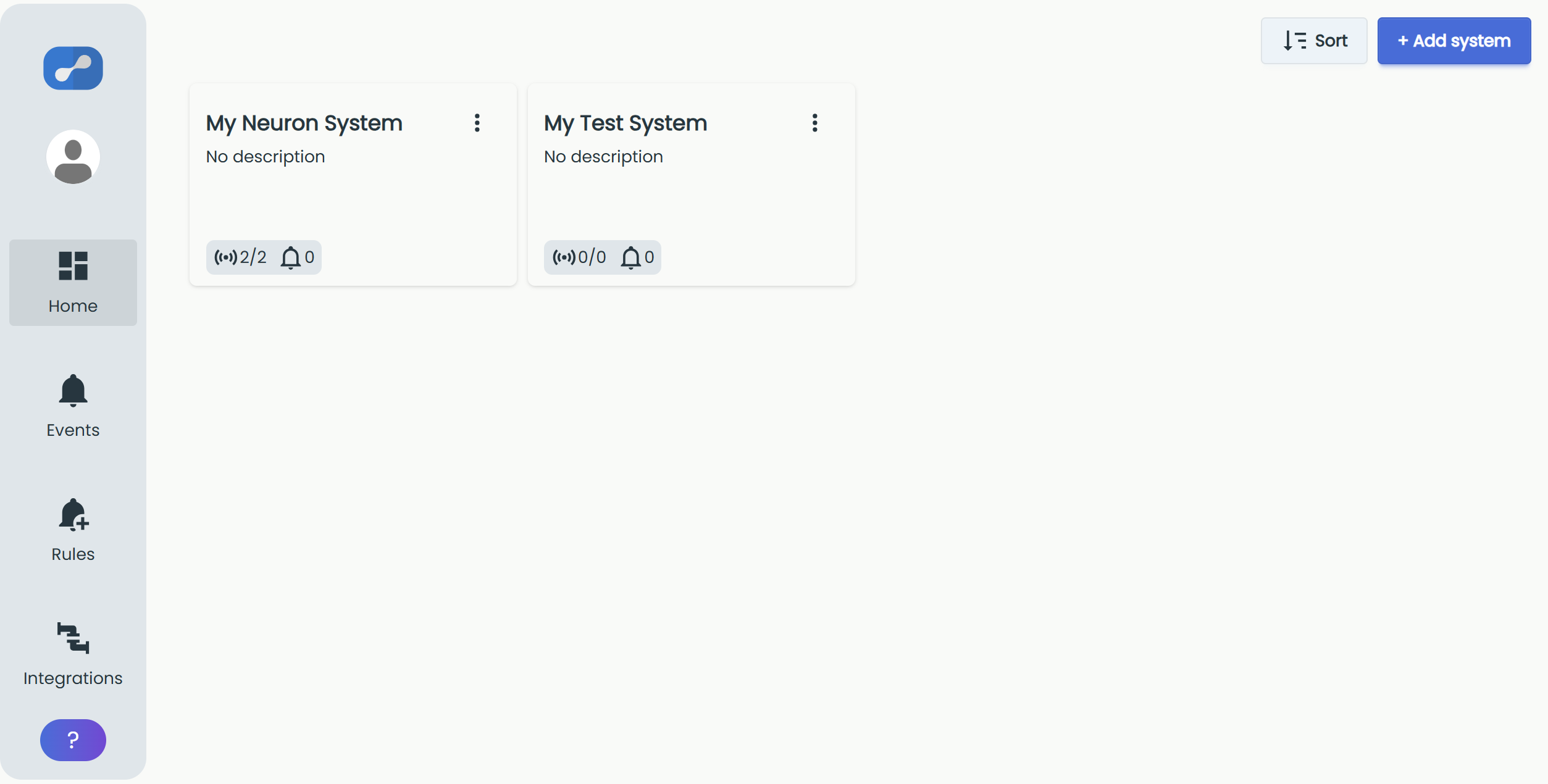
The user menu can be found by clicking on your avatar picture.
Select "Invitations" choice.
.png)
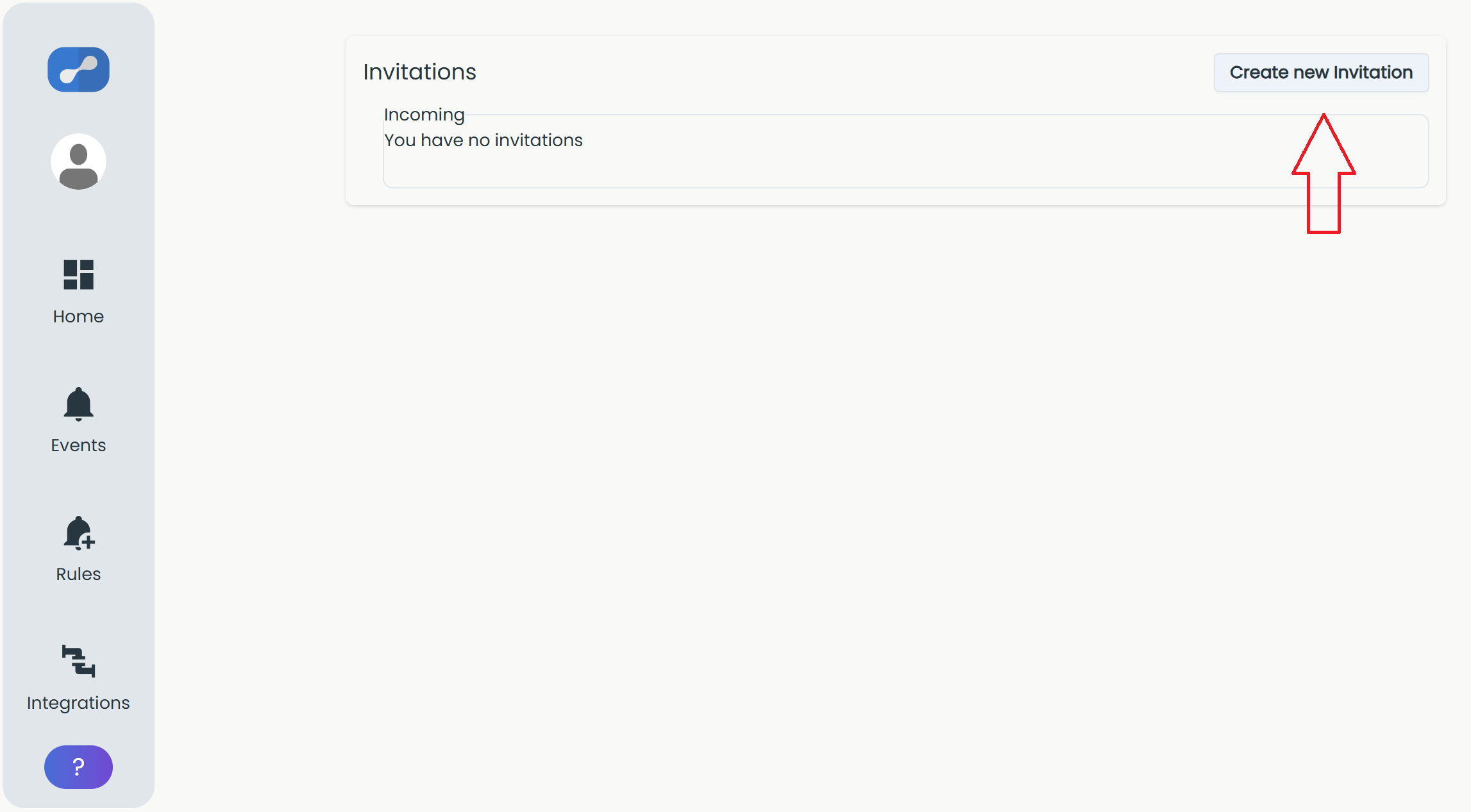
This will redirect you to the main invitations page where you can see your pending invitations or invite other users to your systems.
Select "Create new invitation" button.
Select the system that the invitation applies to and fill in the e-mail for the user you want to invite.
You also have the choice of inviting the user as an admin of your system.
All users invited as admin have the option to create or delete sensors, gateways and even the whole system! Take caution!
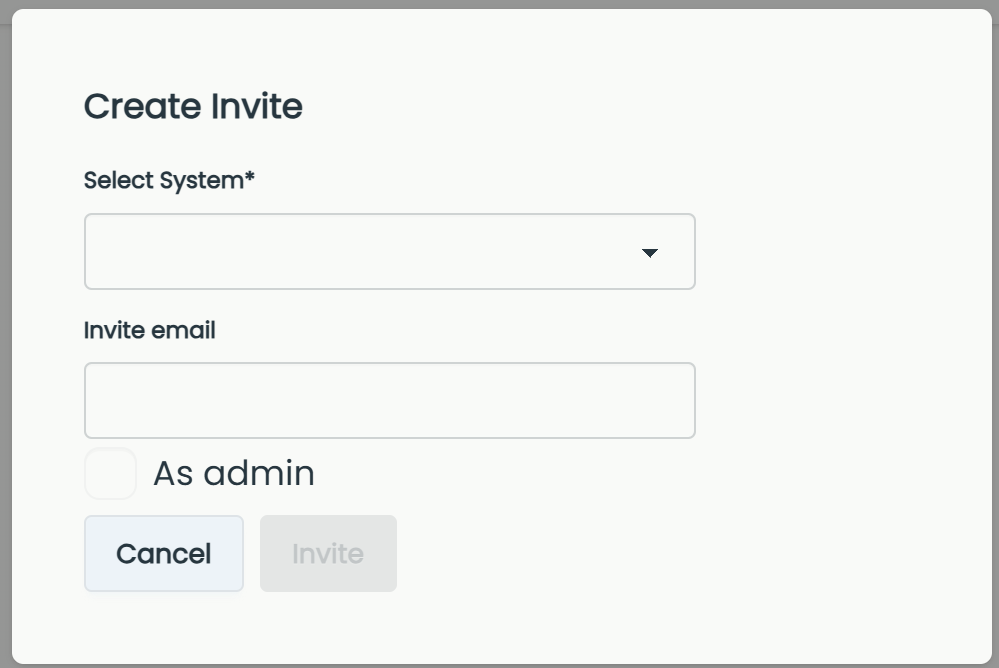
Once you have selected the system and entered the e-mail, click "Invite" to send the invitation.
Create invitation from system settings
You can also invite new users from within the specific system settings.
Go to the applicable system, click "Settings" (the gear icon), then select "System settings".
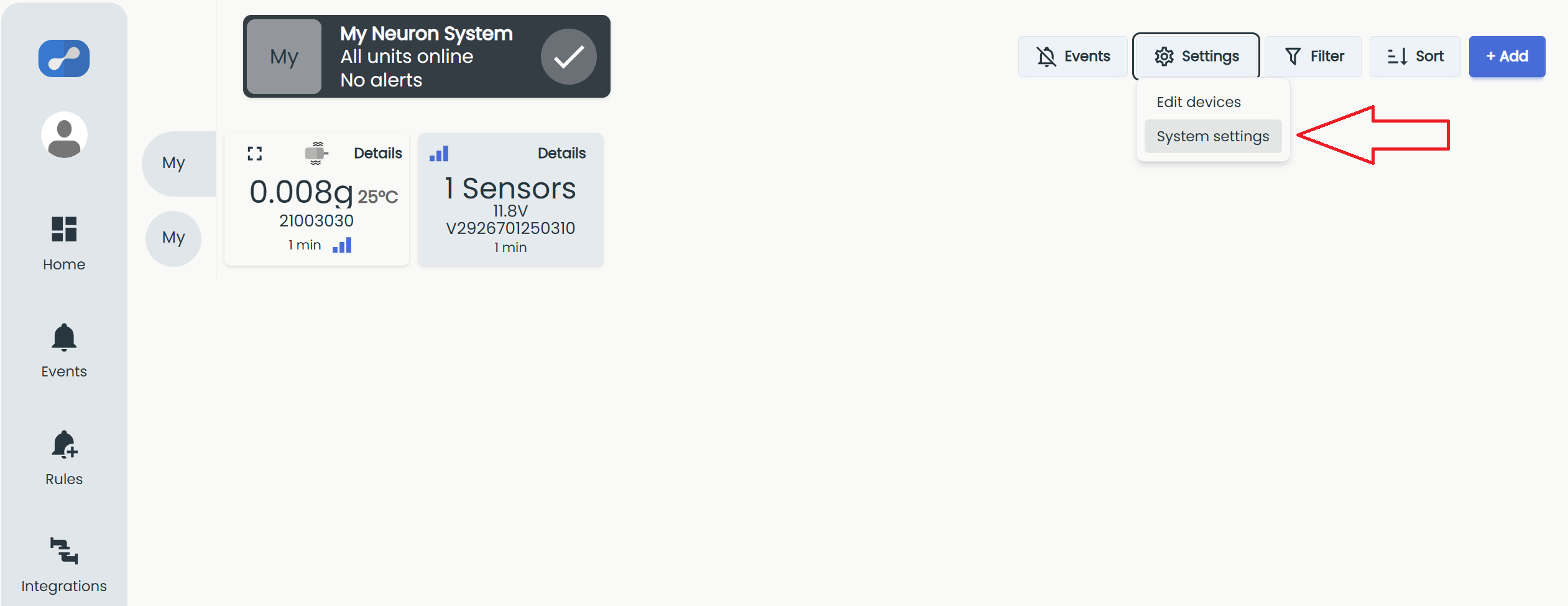
This will open up the system settings.
Scroll down to "System members" area and select "+ Invite User" button.
Here you can also see all current users of the system, all pending invitations and also admin privilege.
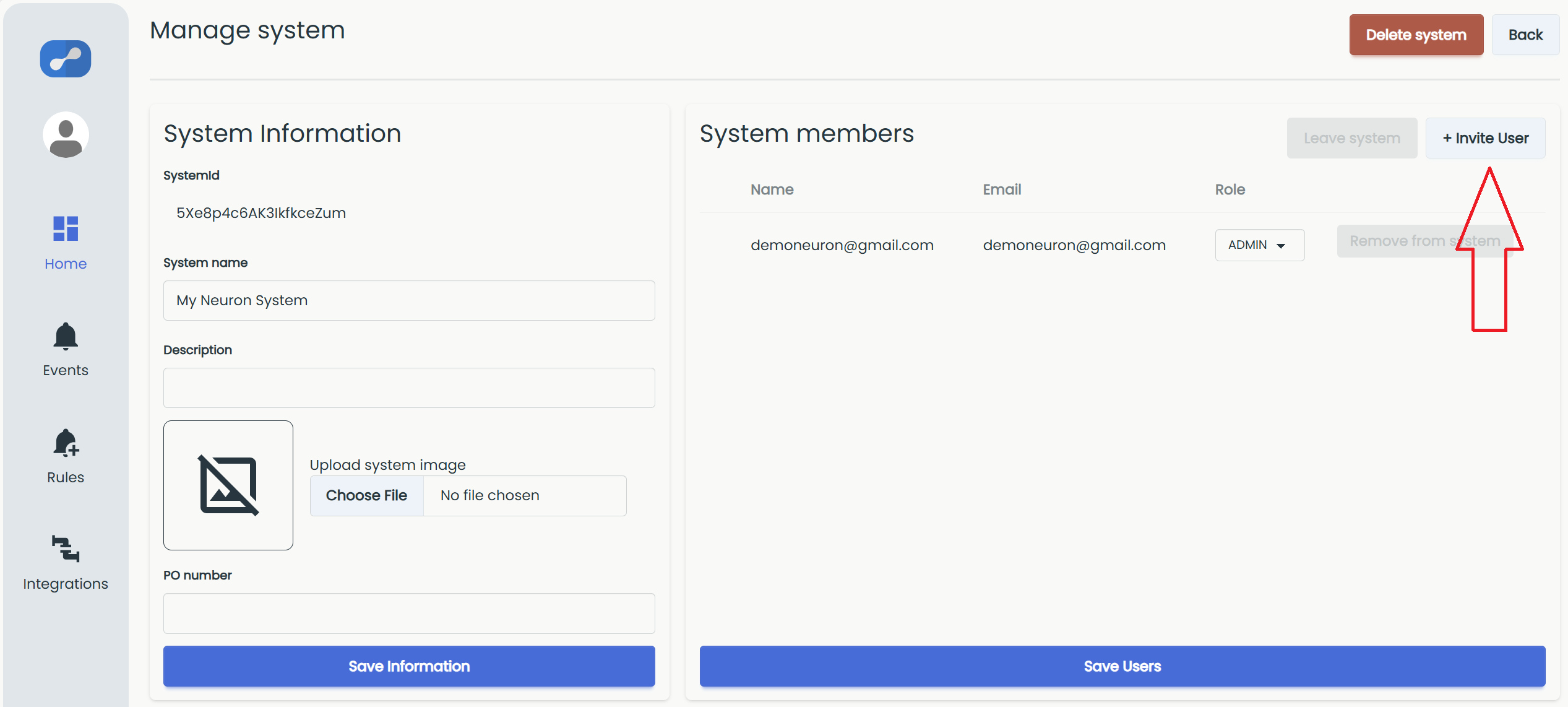
Clicking "+ Invite User" opens the same "Create Invite" dialog shown above.
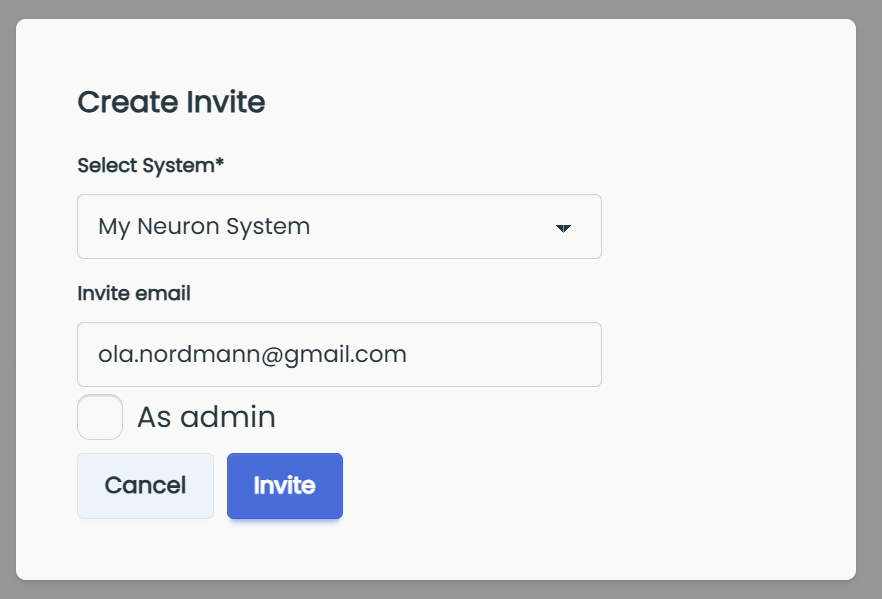
Fill in the e-mail of the user and select "Invite".
The user will now receive an e-mail with invitation link to the system.
Accept invitation
When other users invite you to their system, you must accept it before you get access.
This can be done in two different ways.
You can accept the invitation through the invitation link in the e-mail received, or you can accept the invitation from the user menu at https://neuronsensors.app/
When you have a pending invitation, a banner appears on your dashboard. Click "Go to invites" to open it directly.
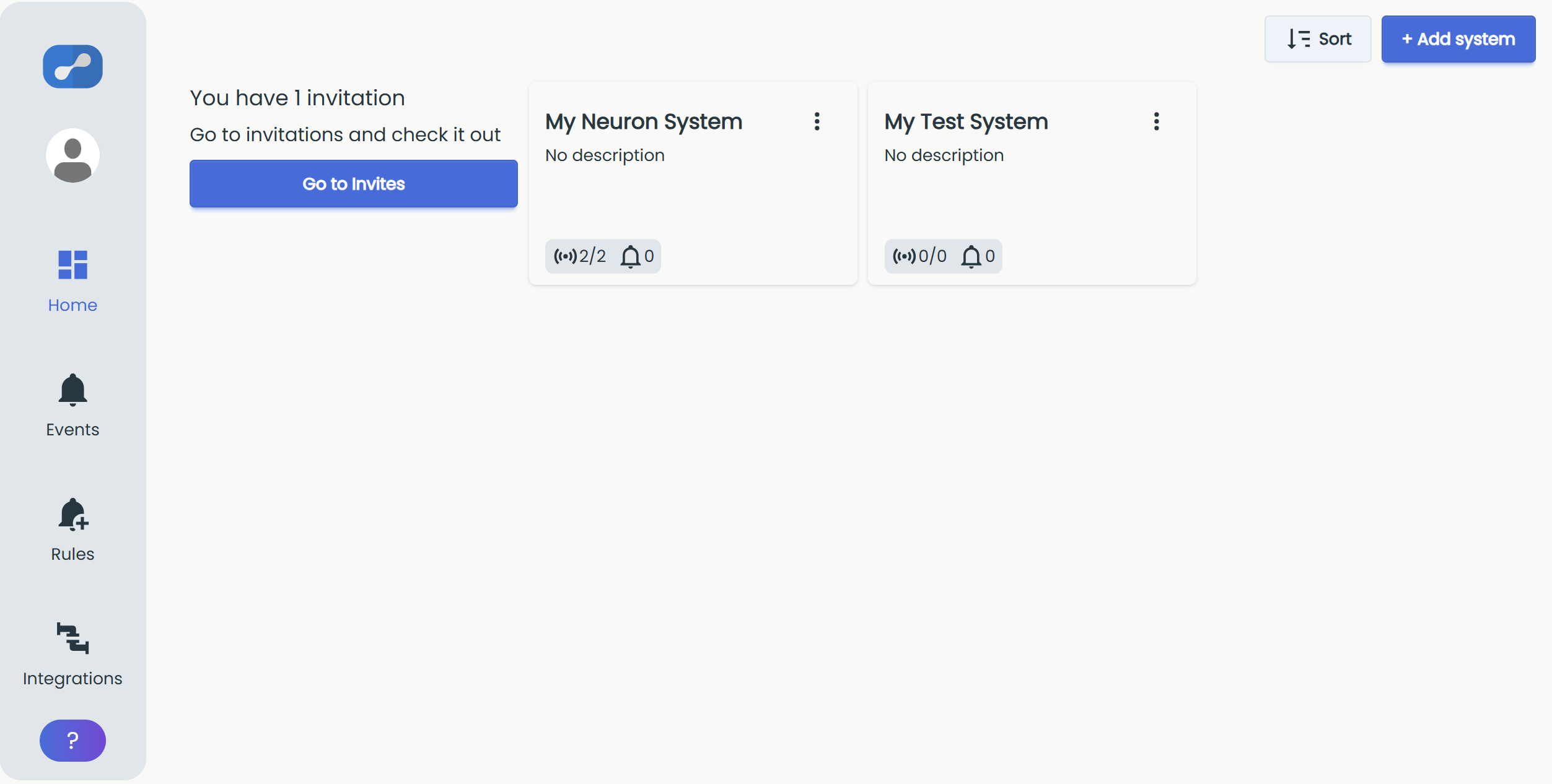
If you don't see the banner, open the user menu by clicking on your avatar picture and select "Invitations".
.png)
This will redirect you to the main invitations page where you can see your pending invitations.
From here you can either accept or reject the invitations.
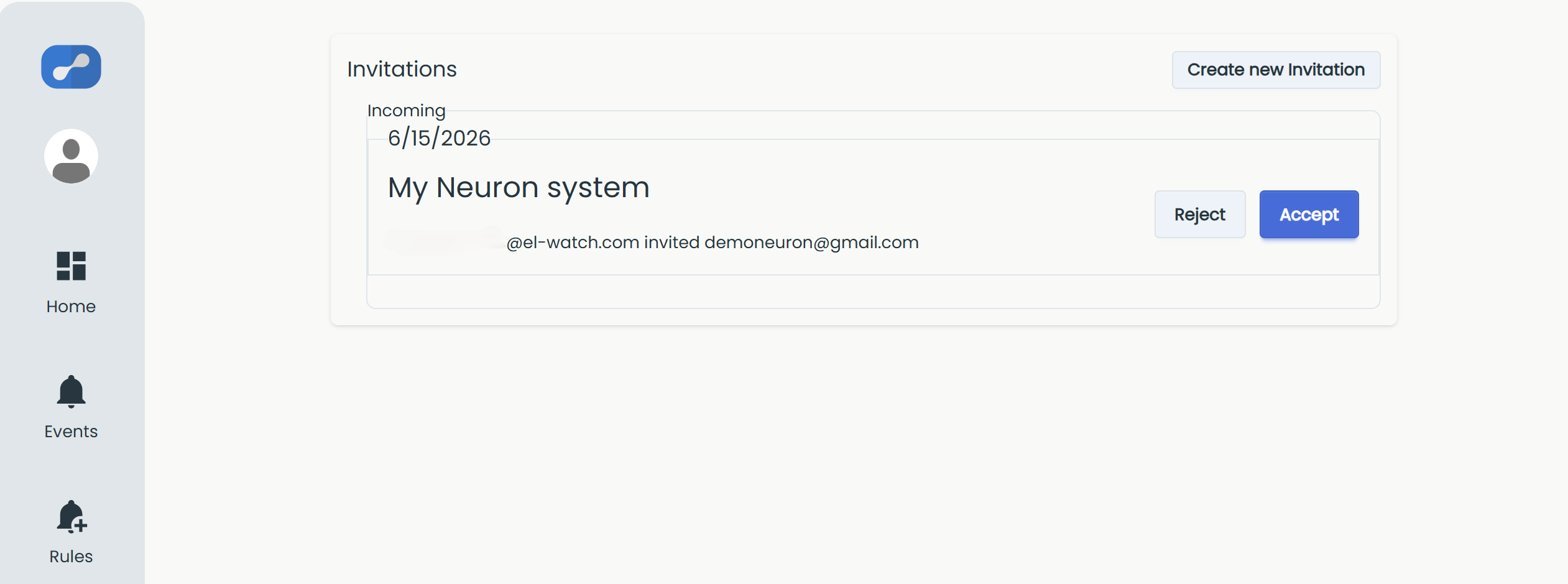
Once you have accepted the invitation, the system will show on your dashboard.