Add tags to a device
Sensors and gateways can be assigned one or more tags. Tags make it easy to group related devices, for example by location or machine, so you can quickly filter or search for them later.
In Neuron, a tag is a keyword you assign to a sensor or gateway, such as "hall 2" or "vibration". The same tag can be applied to many devices, which lets you filter a system view down to just those devices and build Groups from them.
Tip: agree on a naming convention before you start, since consistent tags are what make filtering and grouping reliable.
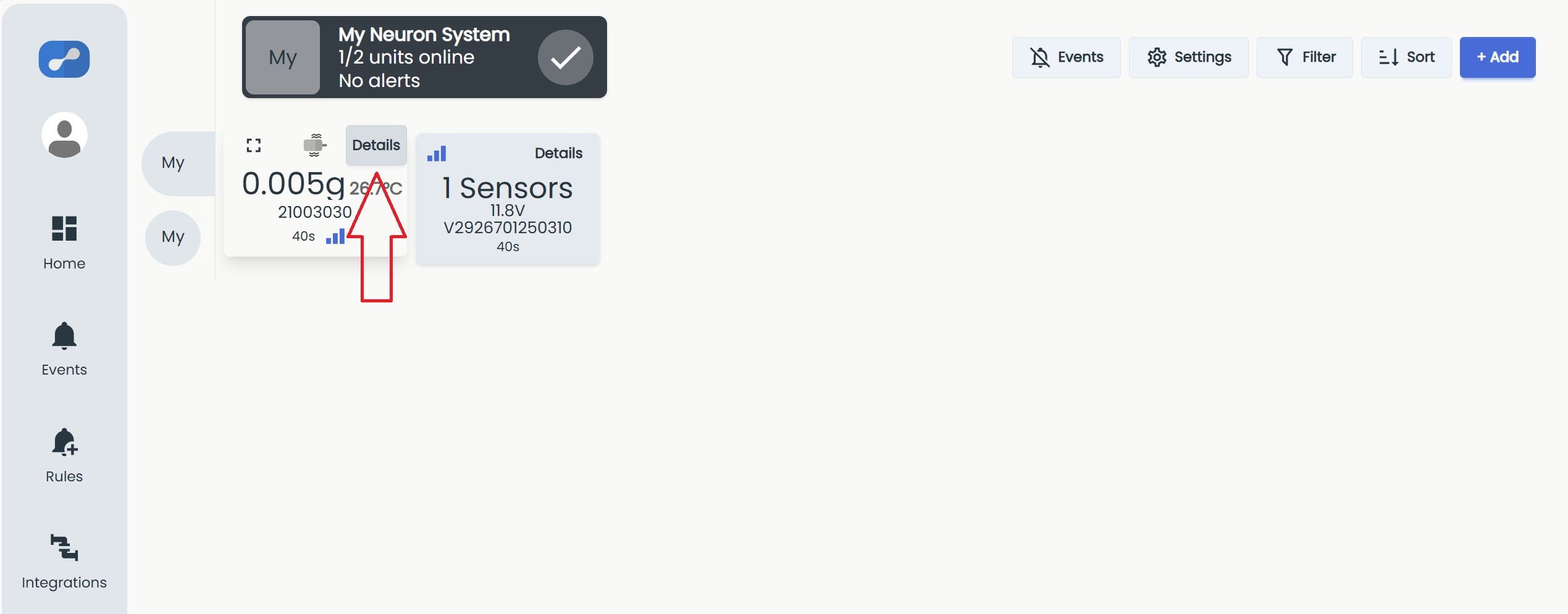
From inside a system, click "Details" on the relevant sensor tile to open its details.
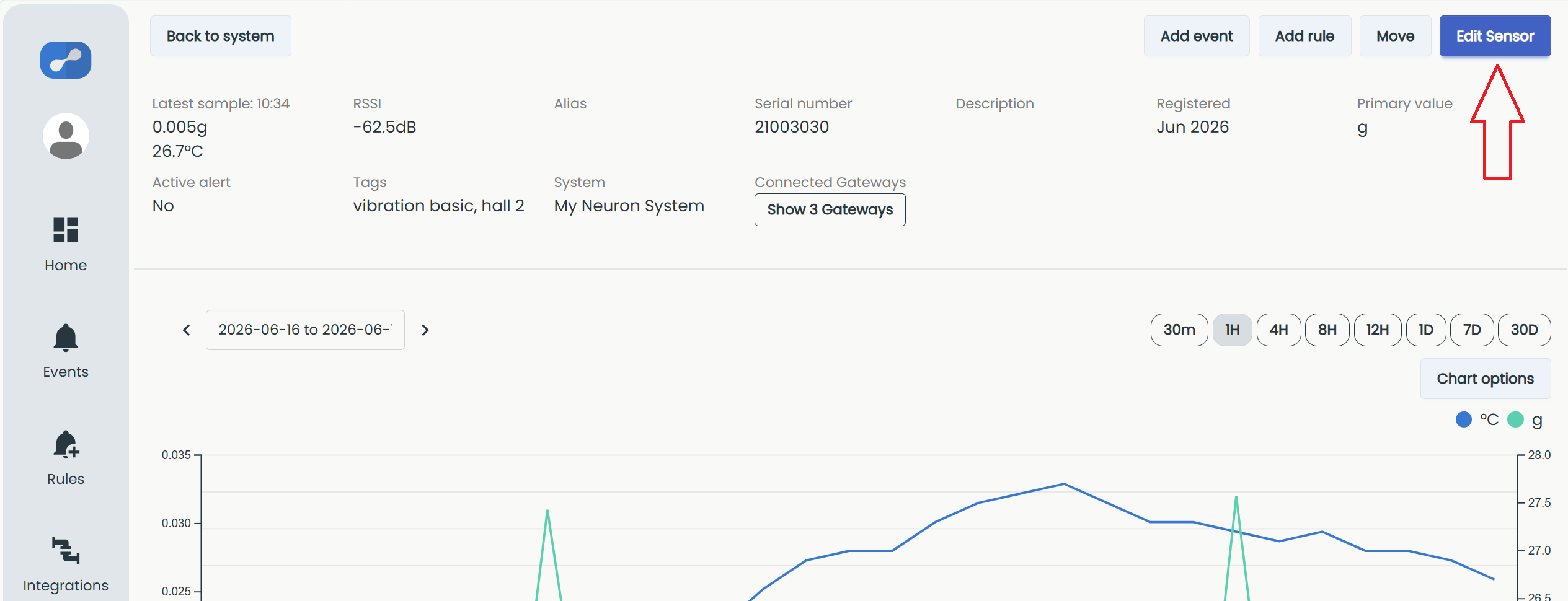
From here, click "Edit Sensor" to navigate to the sensor settings.
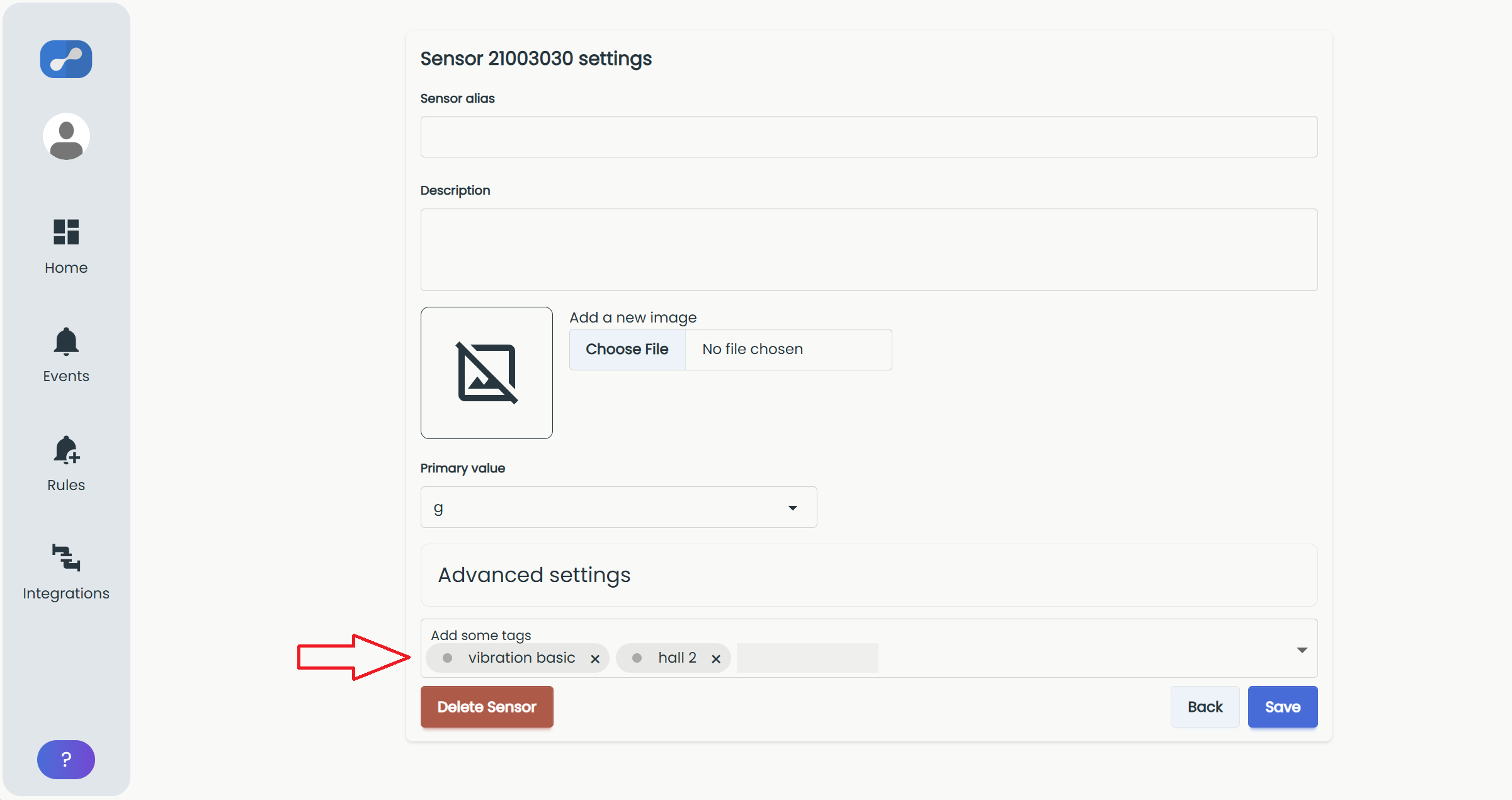
In sensor settings, scroll down to "Advanced settings" and find the "Add some tags" field. Start typing to either pick an existing tag from the list or create a new one, then click "Save". A sensor can have several tags at once, shown as removable chips in the field.
Filter by tags
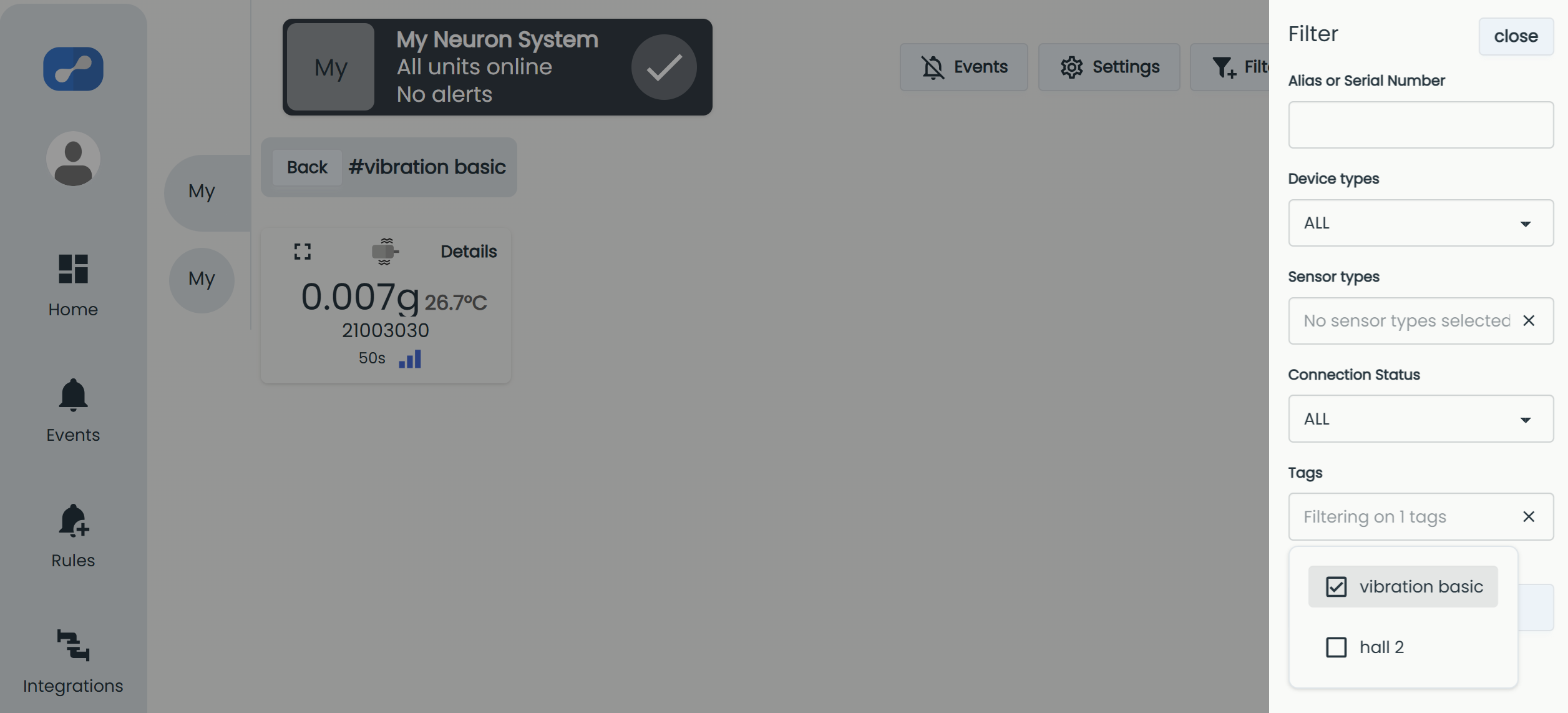
From inside a system, click "Filter" (the funnel icon).
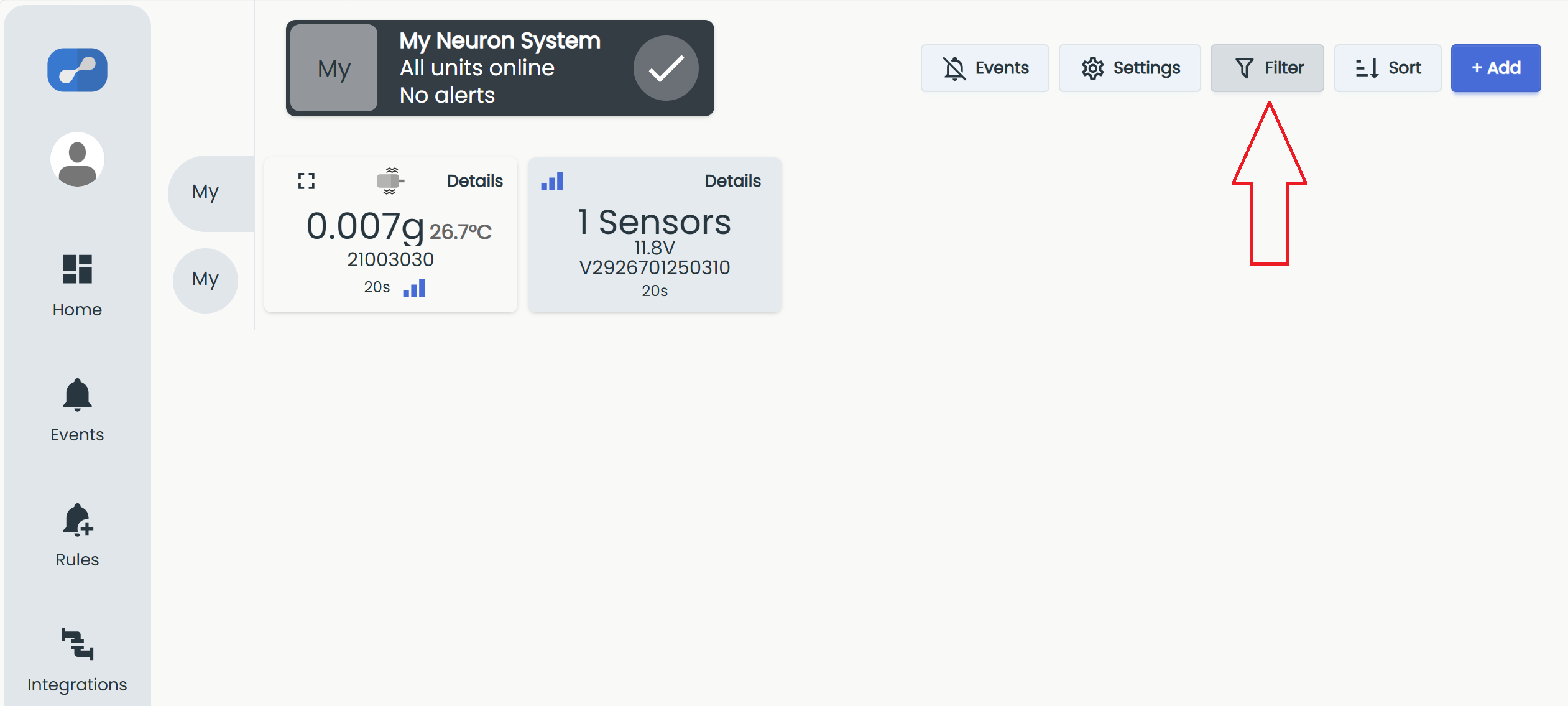
This opens the "Filter" panel. Under "Tags", tick the tags you want to filter on. The system view then shows only the sensors and gateways that carry the selected tags. You can combine a tag filter with the other options in the panel, such as device type or connection status.